 DevCat
Infrastructure
VPN and tunnels
Connect OpenVPN and WireGuard VPNs, SSH tunnels and Kubernetes port-forwards, and watch their traffic live.
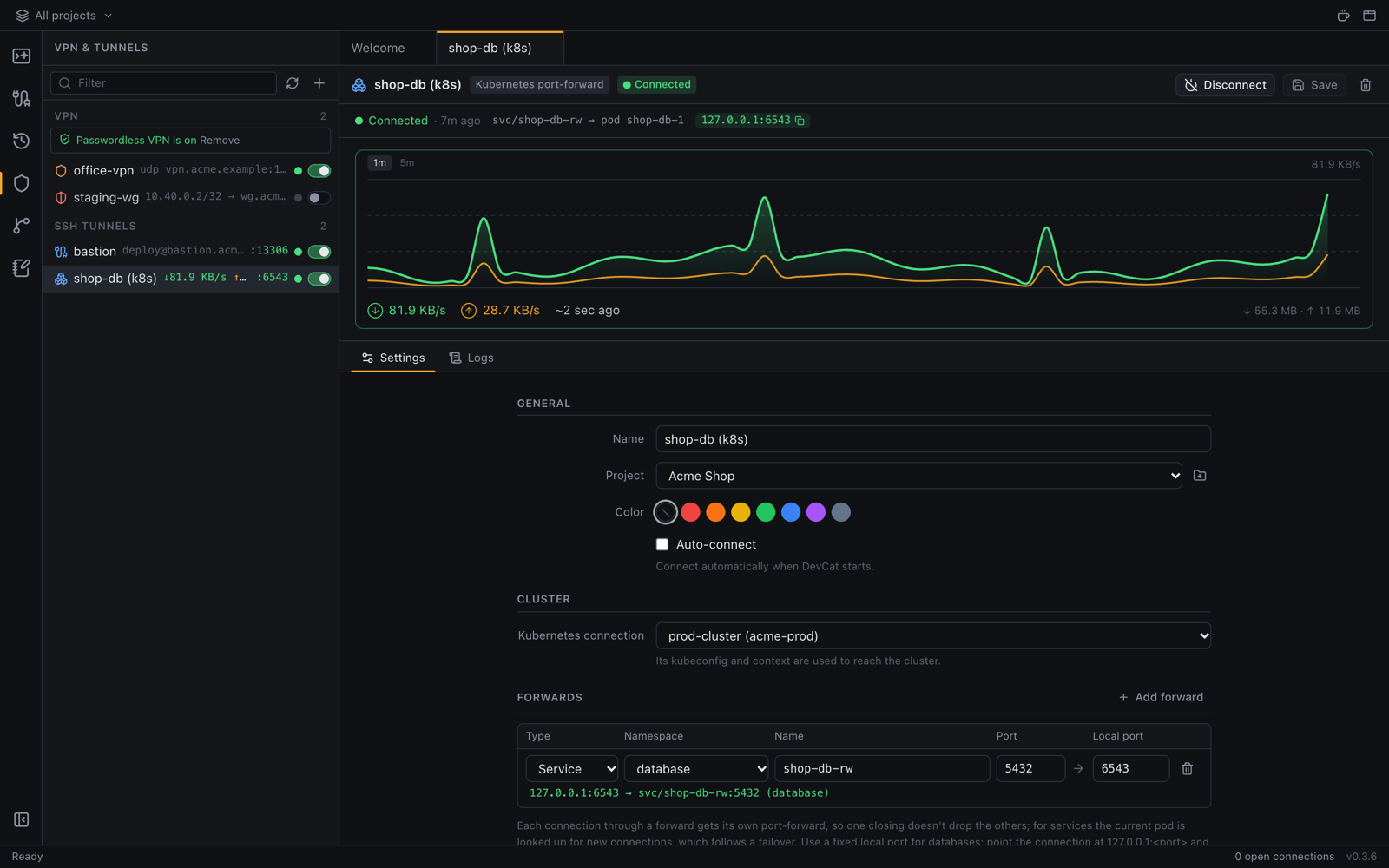
Add a VPN or tunnel
Click VPN & SSH tunnels in the left bar, then + (Add VPN or SSH tunnel):
| Choice | Use it for |
|---|---|
| Import file… | An OpenVPN .ovpn or WireGuard .conf file you got from your company or provider |
| Import from ~/.ssh/config… | SSH hosts you already have, turned into tunnels |
| New OpenVPN / New WireGuard | Setting one up in a form instead of a file |
| New SSH tunnel | Local port forwards and a SOCKS proxy through an SSH server |
| New Kubernetes port-forward | A service or pod in a cluster, on a local port |
You can also double-click an .ovpn file in Finder or Explorer (or use Open With → DevCat) to import it.
Connect
Click a profile and Connect. Its status, log (Show logs) and a live traffic graph appear on the right.
Connect databases through a VPN or tunnel
In a database connection's form, set Network to a VPN, tunnel or port-forward. When you open that connection, DevCat connects the network first. See Database connections.
What you need installed
- Windows: nothing up front. DevCat includes the official OpenVPN and WireGuard installers and offers to install the missing one the first time you connect, with one UAC prompt.
- macOS: OpenVPN is built in. For WireGuard, install
wireguard-tools(for examplebrew install wireguard-tools). - Linux: install
openvpnand / orwireguard-toolsfrom your distribution.
SSH tunnels
An SSH tunnel has an SSH server (host, user, Password or Private key) and one or more forwards:
- Local port → remote host and port, for example
localhost:5433 → db.internal:5432. Add forward adds more. - SOCKS proxy: a local port your browser or tools can use as a proxy into that network.
Kubernetes port-forwards
Pick one of your Kubernetes connections, the Namespace and the Service (or pod), and the Local port. It's switched on and off like a VPN.
Every client connection gets its own forward, so one closing can't drop the others. Services are looked up again for new connections, so a database failover to a new pod is followed.
Passwordless VPN (macOS and Linux)
To stop typing your password on every connect:
- In the VPN list, click Set up passwordless VPN….
- Enter your password once.
DevCat installs a small root-owned helper and a sudoers rule for your account only. After that, VPNs connect without asking. The helper keeps working across DevCat updates and only asks to be updated (Update helper) when it changes. Remove takes it out again.