 DevCat
Databases
SQL editor
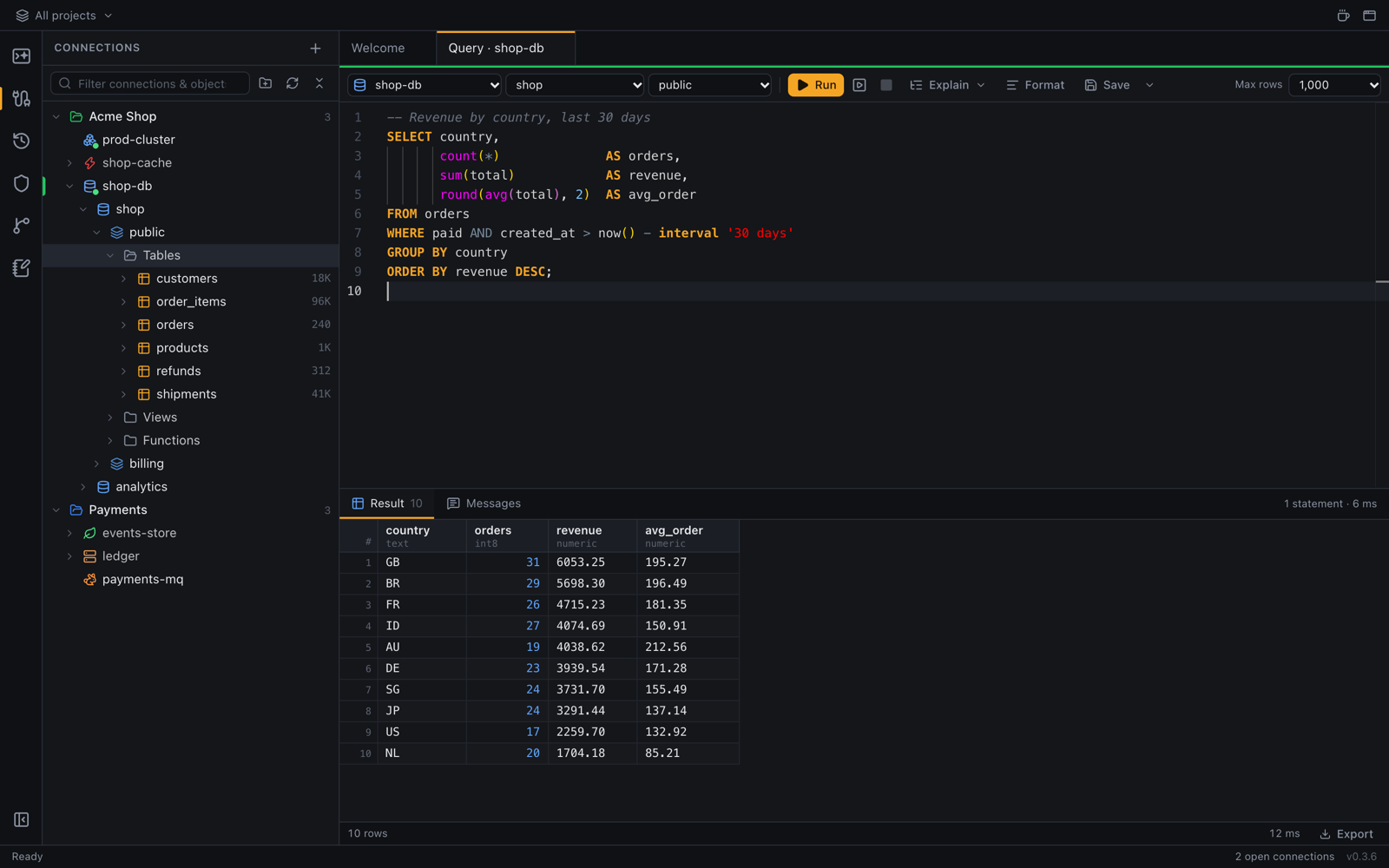
Write and run SQL with autocomplete, see several result sets at once, explain and format queries.
Run a query
- Right-click a connection, database or schema → New query.
- Check the Connection and Schema menus in the toolbar.
- Type your SQL. Autocomplete knows the tables and columns of the connected schema.
- Press ⌘↵ (Ctrl+Enter) to run the statement under the cursor, or the selected text.
Press ⇧⌘↵ (Ctrl+Shift+Enter) to run the whole script. Each statement that returns rows gets its own result tab. Stop cancels a running query.
More tools
| Tool | How |
|---|---|
| Explain the statement | ⌘E (Ctrl+E) |
| Format SQL | ⇧⌥F (Shift+Alt+F) or the toolbar button |
| Save the query | ⌘S (Ctrl+S); it then appears in History & saved queries |
| Limit rows | the row limit in the toolbar (Maximum rows fetched per result set) |
Results
Results open in the data grid: sort, filter, copy as CSV / TSV / JSON / INSERT statements, or export them. The messages tab shows row counts and errors.