 DevCat
Infrastructure
Kubernetes
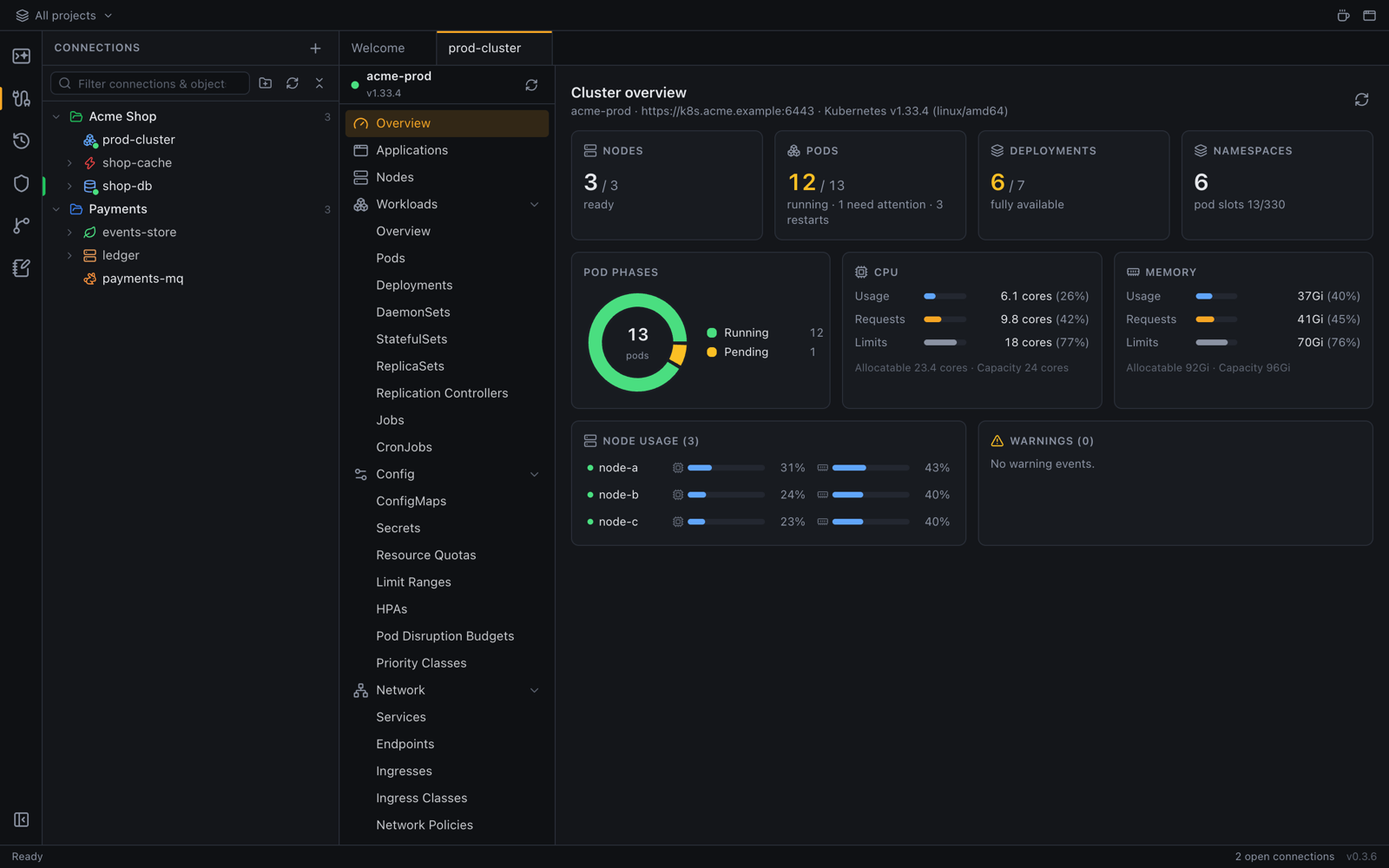
Watch a cluster live, read logs, open a shell in a pod, forward ports, scale and restart workloads.
Add a cluster
- In Connections, click New connection and pick Kubernetes.
- Choose the Kubeconfig file (your
~/.kube/configby default) and the Context. - Optionally set a default Namespace, then save.
Any context kubectl can use works: EKS, GKE, AKS, k3s, kind, minikube, RKE2 and so on. Right-click the
connection → Open to open the cluster in a tab.
Find your way around
The cluster tab has a list of resource kinds on the left:
- Overview: the cluster at a glance. Nodes and Namespaces are right below.
- Applications: your apps grouped together, and Workloads: Deployments, StatefulSets, DaemonSets, Jobs, CronJobs and Pods.
- Config, Network, Storage and Access Control: ConfigMaps and Secrets, Services and Ingresses, volumes and claims, service accounts and roles.
- Events, Helm releases and Custom Resources (their definitions and instances).
Pick namespaces with the Namespace filter at the top. Everything updates live as the cluster changes.
Act on a resource
Right-click a row (or use its Actions button):
| Action | What it does |
|---|---|
| Logs | Follow the logs. Search them, choose how many Lines of history, or see the previous (crashed) container |
| Shell | Open a shell inside the container. ⌘= / ⌘- / ⌘0 (Ctrl on Windows and Linux) change its font size |
| Port forward… | Forward the pod or service to a port on your computer |
| Scale… | Change the number of replicas |
| Restart | Roll the workload's pods |
| Edit | Change the YAML and apply it (View YAML on read-only connections) |
| Delete | Remove it, after asking |
Logs and shells also work on a Deployment: DevCat picks a pod, and a pod switcher lets you change to another one.
Show details opens a panel with the object's metadata, conditions, containers and YAML.
Port forwards
Port Forwarding lists the forwards you started from the cluster tab. For a forward you can switch on and off like a VPN, and that a database connection can depend on, add a Kubernetes port-forward in VPN and tunnels.