 DevCat
Databases
Data grid and table designer
Browse and edit table data, filter by typing in a column header, and change a table's structure with a preview of
the SQL.
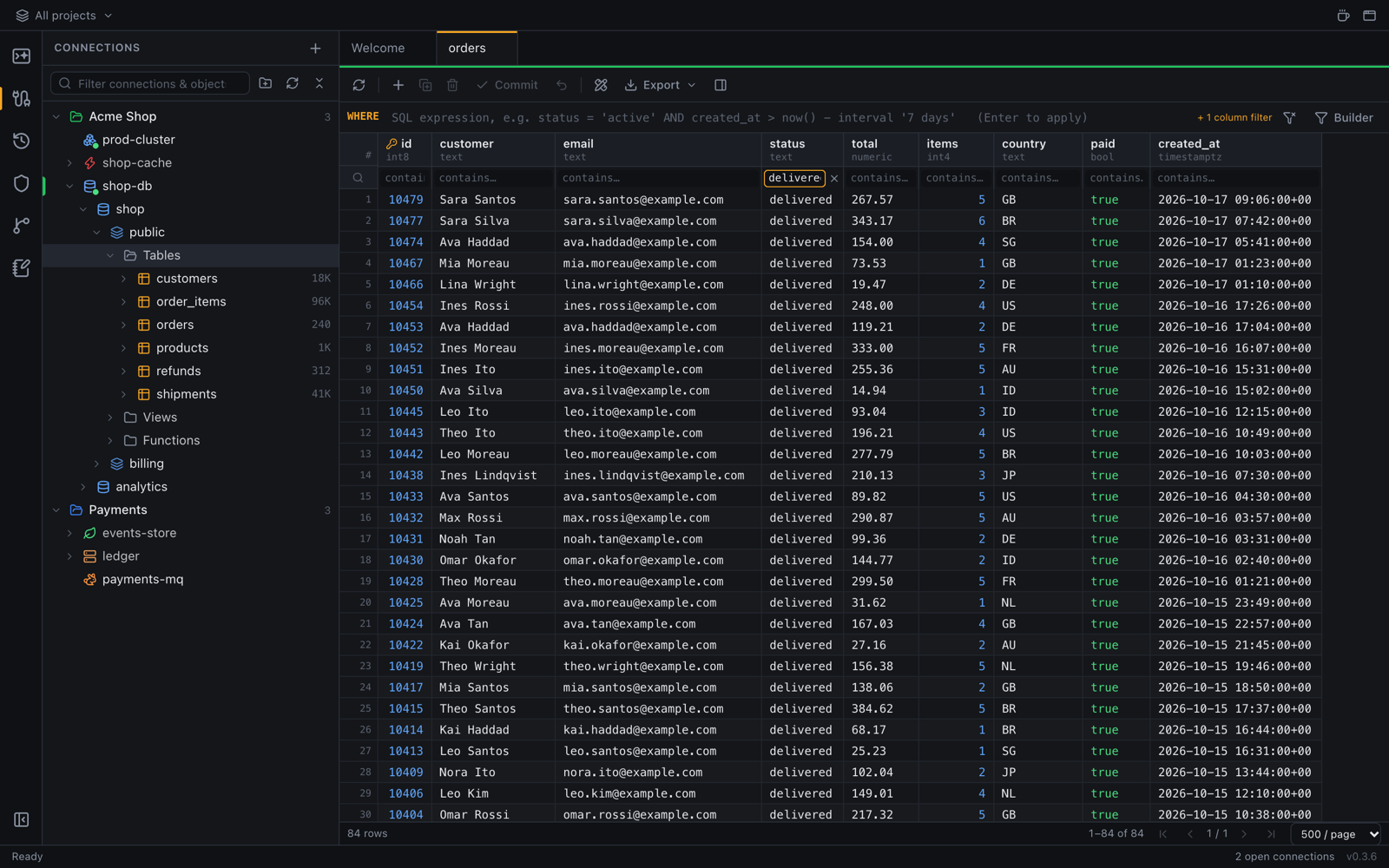
Browse a table
Right-click a table → Open data (or select it and press Enter). The grid loads rows page by page, so big tables stay fast.
- Filter: type in a column's header and press Enter. Filters on several columns combine; Clear all filters removes them. Right-click a cell → Filter by this value is a shortcut.
- Sort: click a column header, or right-click → Sort ascending / Sort descending.
- Page: the controls at the bottom move between pages, and Rows per page sets the page size.
- Reload: ⌘R or F5.
Edit rows
- Double-click a cell to edit it. Large values open in an editor dialog. Right-click → Set NULL clears one.
- Add row, Duplicate selected rows, or delete the selected rows with ⌘⌫ (Ctrl+Delete).
- Changes stay pending (highlighted) until you commit them with ⌘S (Ctrl+S) or Commit changes, or throw them away with Discard changes. Restore row undoes one deleted row.
The form view shows one row at a time, handy for wide tables.
Copy
Select cells or rows, then:
- ⌘C (Ctrl+C) copies tab-separated values, ready for a spreadsheet.
- ⇧⌘C (Ctrl+Shift+C) adds the header row.
- Right-click → Copy as for CSV, JSON, SQL INSERT statements, TSV with headers or a Markdown table.
To save to a file, use Export CSV…, Export Excel…, Export JSON… or Export SQL INSERTs….
Table designer
Right-click a table → Design table, or a schema → New table….
- Edit Columns (name, type, length, not null, default, comment), Indexes and Foreign Keys (with On delete / On update).
- Check the generated
CREATE/ALTERstatement in SQL Preview. - Save with ⌘S (Ctrl+S).
ER diagram
Right-click a schema → ER diagram. Tables are laid out automatically, left to right or top to bottom.
- Click a table to highlight its relationships. Show only the selected table and its directly related tables hides the rest.
- Find table (type a name, press Enter) zooms to a table. Zoom to fit shows everything again.
- Choose tables limits the diagram to some tables. Drag tables to arrange them; Re-run auto layout resets.
- Export the diagram as PNG or SVG.