 DevCat
Git
Git
Find every repository in a folder, read the history as a graph, and commit, branch, stash and push.
Find your repositories
- Click Git repositories in the left bar.
- Click Choose folder… and pick a folder, for example the one holding all your projects.
- DevCat scans it and lists every repository inside, including nested repos, submodules and worktrees.
node_modulesand build folders are skipped.
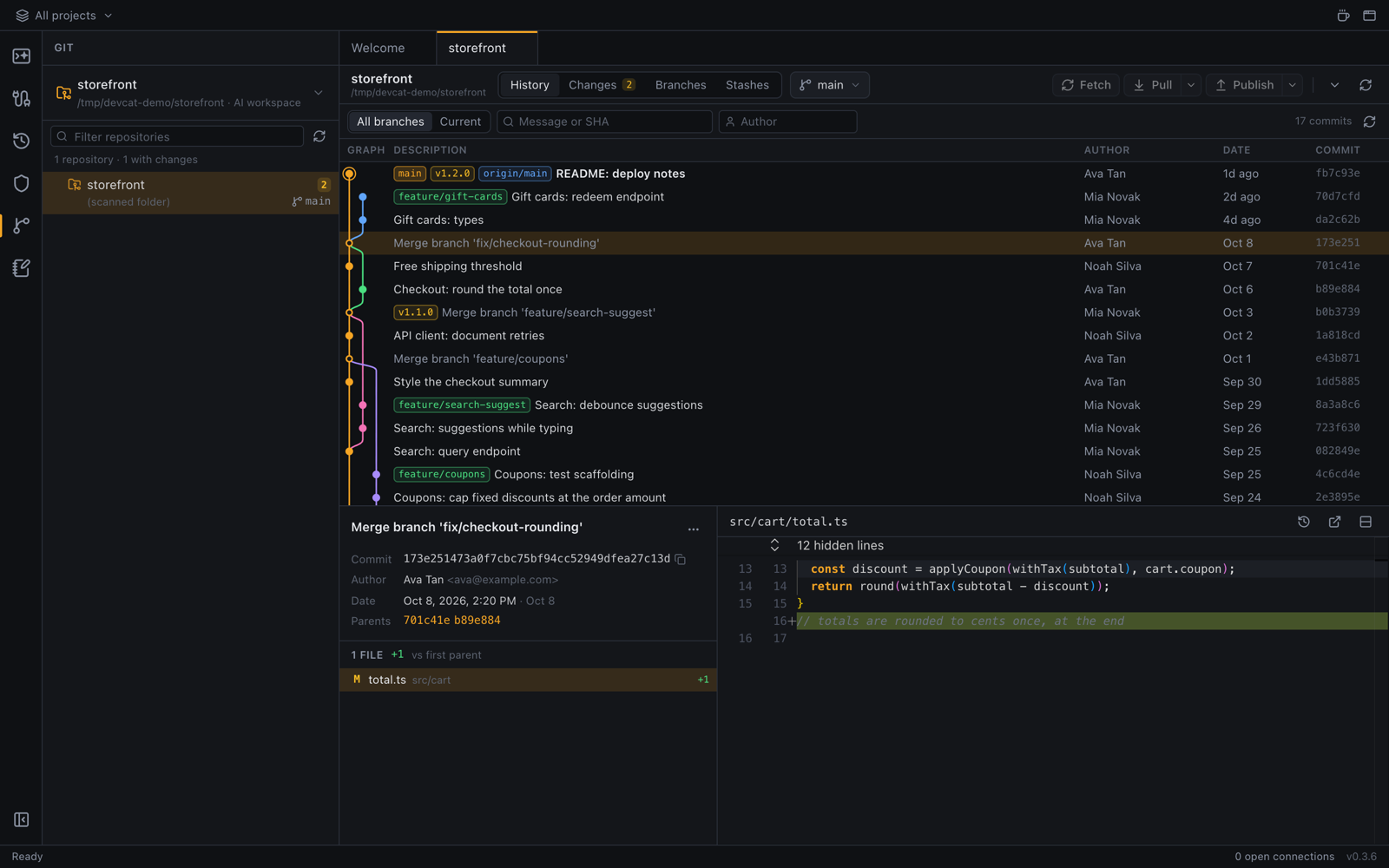
Each row shows the branch, how far it is ahead of or behind its remote, and whether it has changes. Use Filter repositories to find one by name and Rescan after adding or removing repos.
Right-click a repository for Fetch, Pull, Push, Show changes, Open in AI workspace, New AI chat here, Reveal in Finder and Scan from this folder.
The Git tab
Click a repository to open its Git tab. It has four parts:
| Part | What you do there |
|---|---|
| History | The commit graph across all branches. Search, filter by author or by file, and click a commit to see its diff |
| Changes | The working tree: stage, commit, stash or discard |
| Branches | Local and remote branches, tags and remotes |
| Stashes | Apply, pop or drop saved stashes |
Commit
In Changes, tick the files you want (or stage them) and write a message. Ticking lets you commit or discard just some files. Stash changes… saves the rest for later, optionally with untracked files.
Work from the history
Right-click a commit in History for:
- New branch from here…, Create tag here…, Checkout (detached)
- Cherry-pick and Revert
- Reset: Soft (keep changes staged), Mixed (keep changes unstaged) or Hard (discard changes)
- Copy SHA, Copy message
Branches and remotes
In Branches: check out, merge (optionally Always create a merge commit (--no-ff)), rename and delete branches, delete a branch on the remote, and create branches from tags.
Fetch, Pull (merge), Pull (rebase), Push, Push with tags and Force push (with lease)… use your SSH agent or Git credential helper. DevCat never asks for a password itself, so set up SSH keys or a credential helper first.
Blame
Open any file preview and click Blame to see who changed each line, colored by age. Click a line's commit to open it in the history. See Files and previews.