 DevCat
AI workspace
AI workspace
Run your coding agent in a real terminal next to the project's sessions, files, diff and extra terminals.
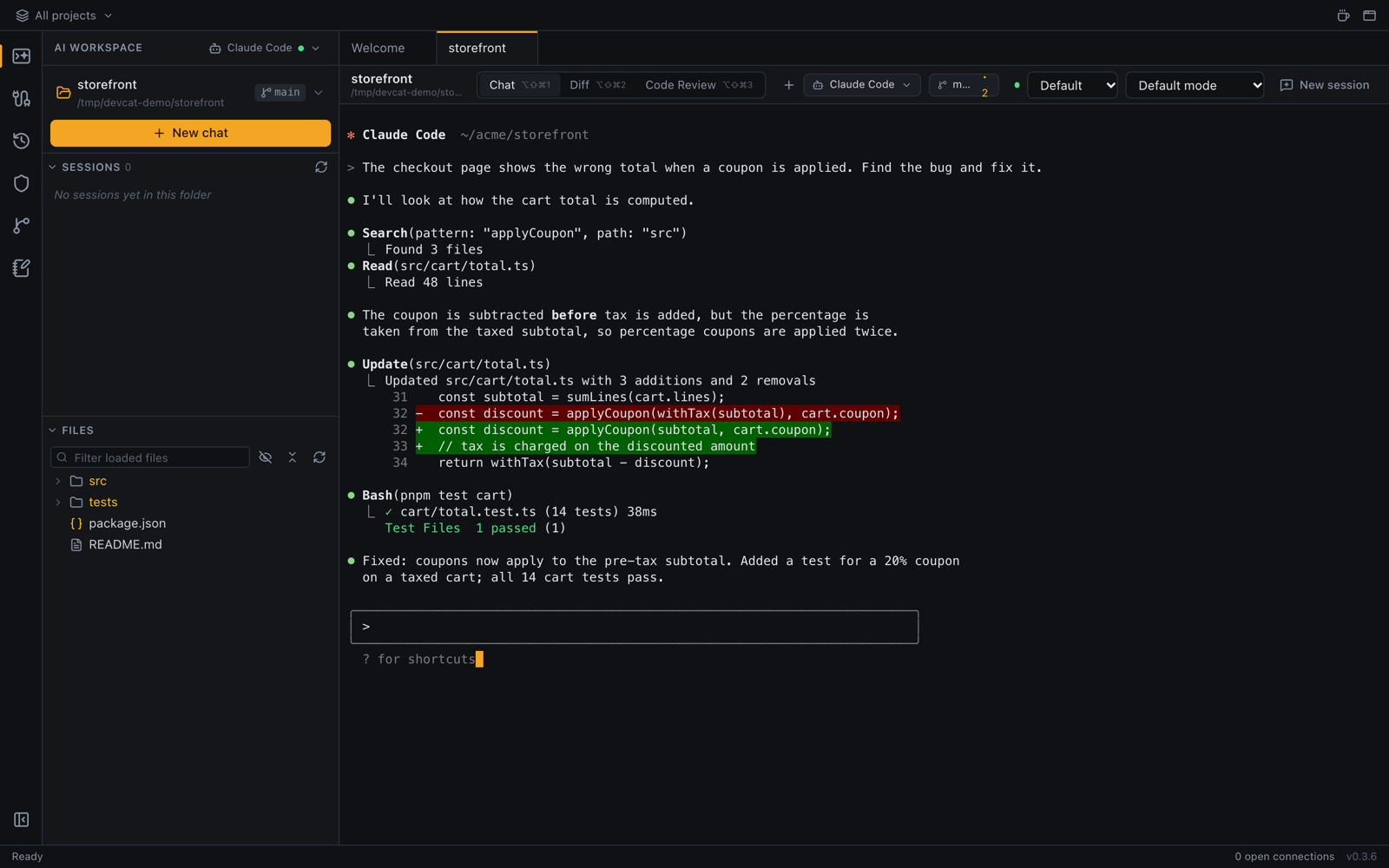
DevCat doesn't ship its own model. It runs the agent CLI you already have installed (Claude Code by default), with your own login, in a real terminal like iTerm2 or Windows Terminal. Everything the CLI can do works as usual.
Start a chat
- Click AI Workspace in the left bar (the top icon).
- Click Open folder… and pick your project's folder. Recent folders and projects with Claude history are listed in the folder menu at the top of the sidebar.
- Click New chat. The agent starts in that folder in a new tab.
- Type to the agent as you would in any terminal.
Sessions
The Sessions list in the sidebar shows your earlier Claude Code conversations for the open folder, newest first. Click one to resume it in a tab. Refresh sessions reloads the list.
Launch options (Claude Code)
The toolbar above the chat has two menus:
- Model: the model Claude starts with. You can still switch with
/modelduring the session. - Permission mode: for example Default mode or Bypass permissions.
Changing either restarts Claude with the new options and resumes the same session.
Views in a chat tab
| View | What it shows | Shortcut |
|---|---|---|
| Chat | The agent's terminal | ⌥⇧⌘1 |
| Diff | What changed in the folder, ready to stage and commit | ⌥⇧⌘2 |
| Code Review | A read-only review of the changes by Claude | ⌥⇧⌘3 |
On Windows and Linux use Ctrl+Alt+Shift instead of ⌥⇧⌘. See Review and commit.
Extra terminals
Click Terminal (or press ⌥⇧⌘T) to open a shell in the same folder, in its own tab next to the chat. Use it for test runs, servers or anything you don't want the agent to touch.
Working with the terminal
- Copy and paste: ⌘C / ⌘V on macOS, Ctrl+Shift+C / Ctrl+Shift+V on Windows and Linux.
- New line in the prompt: Shift+Enter.
- Links and files: web links and file paths like
src/app.ts:12are clickable. Files open in a preview tab. - Font size: ⌘= / ⌘- / ⌘0 (Ctrl on Windows and Linux). The font and line height are in Appearance.
- After the agent exits, press Enter to start it again.
Other agents
Pick another agent (Codex, Gemini CLI, Copilot, Aider, opencode or your own command) in the menu at the top of the sidebar. See AI connections.